Kontrolinator
Overview
The Kaossilator Pro is super awesome. However, if you want to control it from another instrument, or use it to play another device, it's not as fantastic as it could be. It only sends and receives midi control codes, not midi notes. When you press the pad, it knows exactly what note its playing, it just doesn't want to tell you. And if you try sending midi to it from a keyboard, it just looks past you with a cold, electronic stare.
Kontrolinator is a handy little program (written in Processing) that converts midi notes to control codes that simulate presses on the Kaossilator Pro's pad. It also converts actual presses on the pad to midi notes so you can play other midi synths or record your performance.
Here's a little demo:
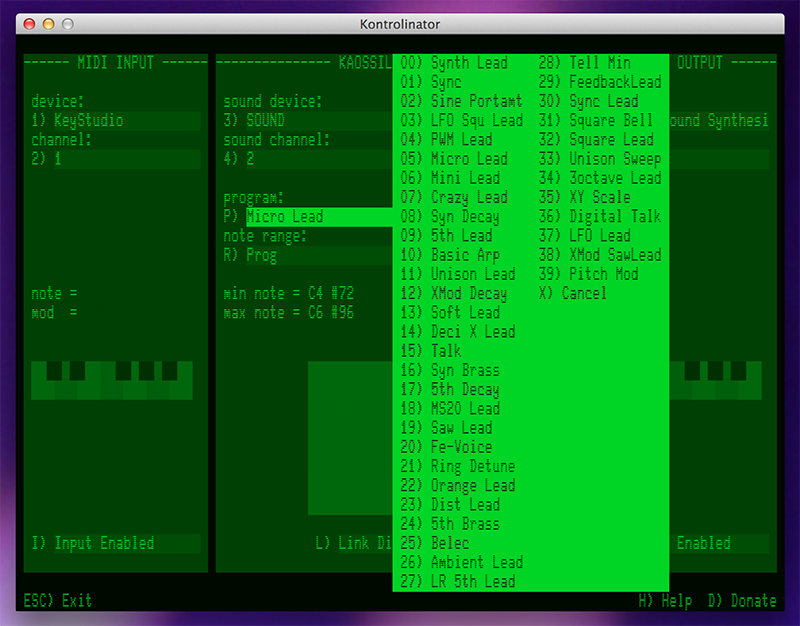
Kontrolinator can convert all of the Kaossilator Pro's programs that have a scale (see Korg's manual for a full list).
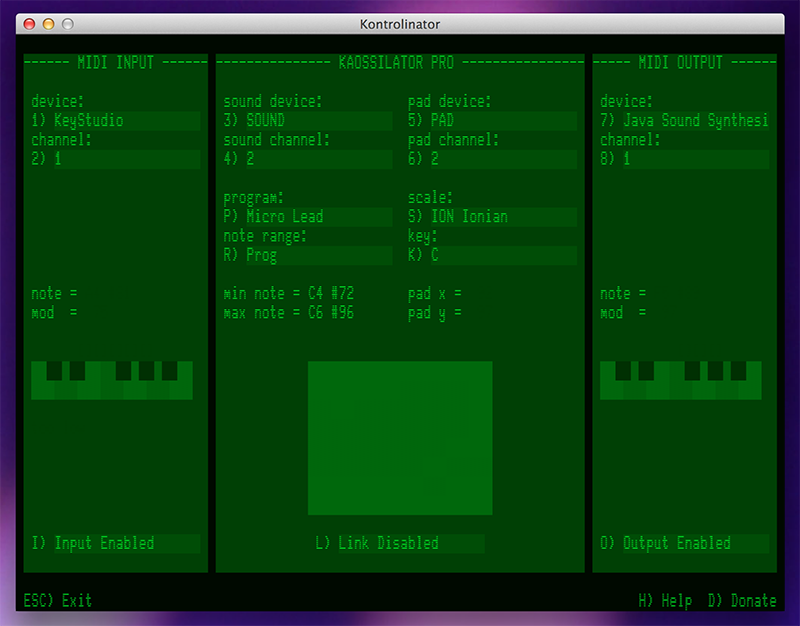
Screenshots
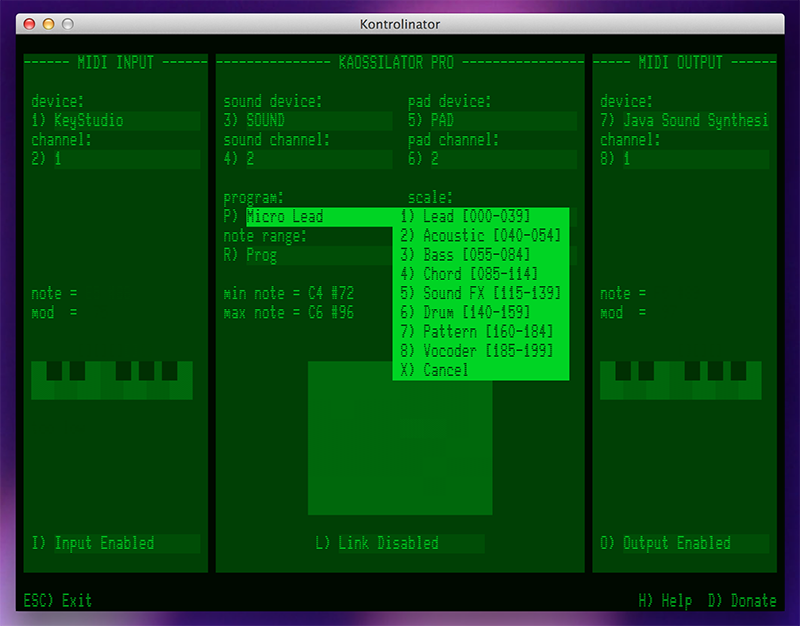
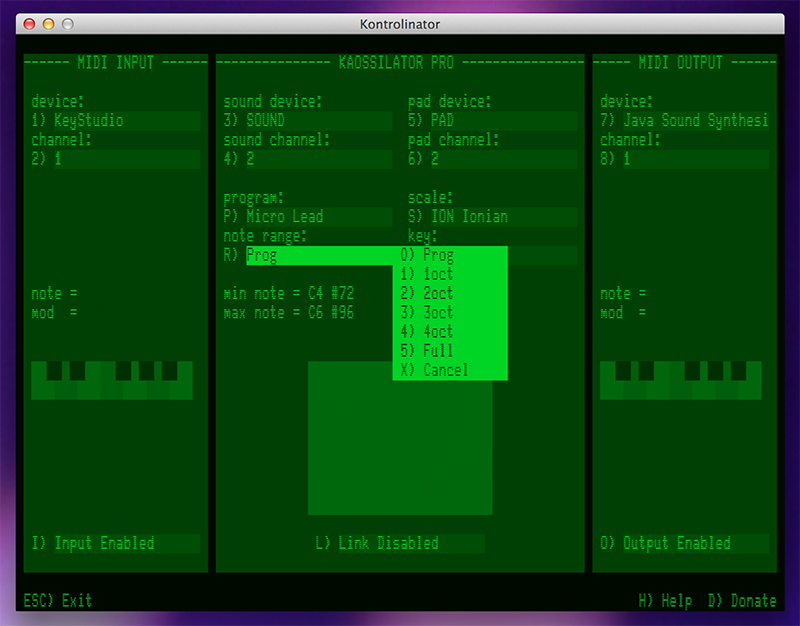
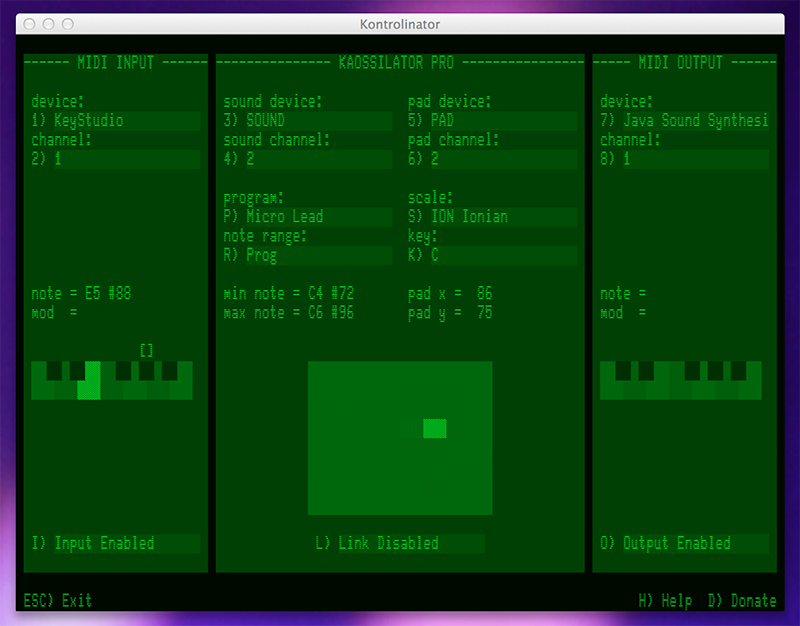
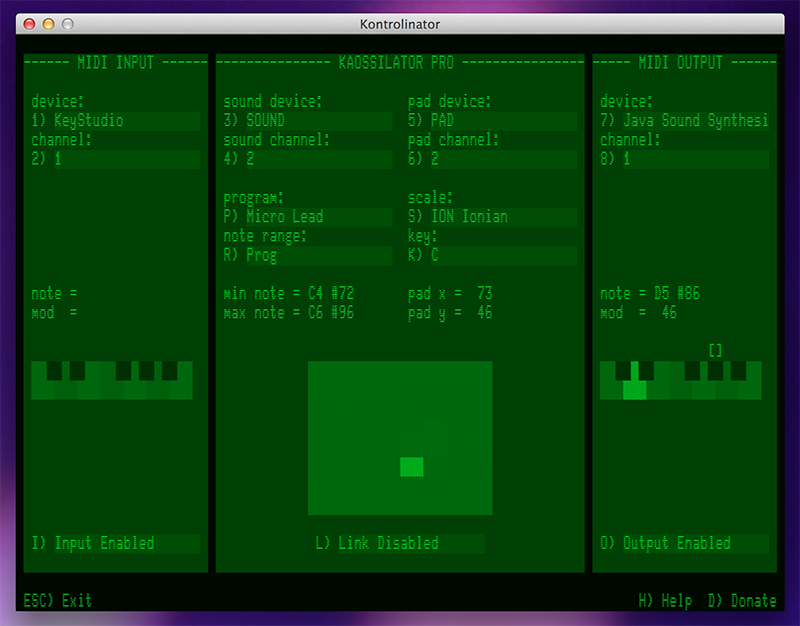
All menus can be operated by typing on the keyboard (for fast input during a performance) or by clicking with a mouse (despite its appearance, its not that retro).
Download and Donate
 Download Kontrolinator for OSX (Tested in Mavericks) |
Your support will encourage future development. Thanks! |
Setup Guide
Play the Kaossilator Pro with a midi keyboard
- Plug a midi keyboard and your Kaossilator Pro into your computer. Make sure they are both switched on.
- Start Kontrolinator.
- Under "MIDI INPUT", select your input device. Pressing "1" or clicking on the input box will open a menu listing all of the input devices that were found. Type the number of the one you want or just click on it. Set the input channel the same way.
- Play a key on the keyboard. You should see the incoming note displayed on the input panel. If nothing happens, check to see if there's a second midi input device with a similar name and try that one instead (see the known issues below).
- Set up the midi connections for the Kaossilator under "KAOSSILATOR PRO". The Kaossilor has two midi devices - one device that responds to midi events and makes the actual sound, and a second device that generates midi control codes from the pad. For me, the sound device is called "SOUND" and the input pad appears as "PAD". Remember to set the midi channels here too.
- Turn the program selector on the Kaossilator Pro. If everything is wired correctly, you should see the program change in the interface. (You can also change the program in Kontrolinator, and the Kaossilator will update.)
- Finally, set the scale, note range, and key in Kontrolinator to match the Kaossilator's current settings. Unfortunately, the Kaossilator Pro doesn't generate a midi event for these controls so you have to keep them in sync manually. The Kaossilator Pro plays a potentially different set of notes from its input pad for every combination of program, note range, scale, and key. If these settings don't match, Kontrolinator cannot remap the input notes properly.
- TIP: If you are only playing the Kaossilator through a keyboard and not planning on playing the pad as well, you can set the scale to "CHROMATIC" and the note range to "FULL". Every input note on the keyboard will map to pad position.
- Play a note on your keyboard and you should hear a sound out of the Kaossilator! If you play a note that is not in the current scale, or is too low or high for the current program, you'll see a message on the input panel telling you so (and the note won't play).
Play another synth with the Kaossilator Pro (or capture your performance from the Kaossilator Pro's pad)
- Set up the midi connections under "KAOSSILATOR PRO" as described above.
- Select a midi device and channel under "MIDI OUTPUT".
- Press on the Kaossilator Pro's pad, and midi notes will be sent to your output device.
- Note that you can enable or disable midi output by clicking on the option in the lower right of the screen.
- By typing "L" and selecting "Link Enabled", you can send midi from the input keyboard or device to the Kaossilator, and then to your midi output device.
Contact
If you have any questions, comments, or suggestions, please email me.
Known issues
- For some reason, the Java MIDI library may detect two midi devices for a single piece of hardware, like "SOUND" and "KAOSSILATOR PRO - SOUND". Only one of them appears to work though. If this is correct behavior, then I need to figure out a way to determine which midi device is the one I care about.
- Occasionally, the first MIDI input note is ignored. I need to determine where this problem is happening.
Future development
Features
- Extend this to support the Kaossilator Pro+. I have to buy one of those first :-)
- Add OSC input and output support
- Add a mode to fix the root input note at a specific octave, regardless of the settings on the Kaossilator.
- Consider sending midi control codes in place of notes for Kaossilator programs that don't have associated scales (like the drum programs) This could be useful, but you can also record that information directly from the Kaossilator.
- Consider outputing all of the notes of a chord (in the chord program). Again, this seems useful, but it would prevent recording the output and playing back as input (since the Kaossilator is monophonic).
- Add different color schemes.
Under the hood
- If you're looking at the code, the communication between the input, outputs, and the kaossilator needs reorganizing. The original intent was to have the "Mapper" class translate notes to pad locations and back. As I worked on this, I realized that I needed to store a lot of state information (what note was played last, where a finger pressed on the pad, etc). This state information is kind of scattered which makes the data flow complicated. I'd like to create three new classes - one for the input midi device, the output device, and the kaossilator - which will be responsible for managing state information. "Mapper" will then be able to just translate and midi events can be routed more cleanly.
- It would be nice to have a "refresh midi" option, but the midibus "findalldevices()" appears to be disabled. Need to investigate further.
Release notes
0.9
- Initial release
 |
Currently, dj Marbins is not available for hire, but you can acquire one of his cousins from Ugly Dolls.